Quick Start
Initial Setup
Satisfactory servers require some initial setup from the client through the "Server Manager". If you, or your players, try to Connect to your server before setting up the server you'll get an "Encryption token missing" error as shown in the image to the right.
 Loading...
Server Manager
The Server Manager is used to, well, manage the server, and you need to use it to setup your server before anyone can connect.
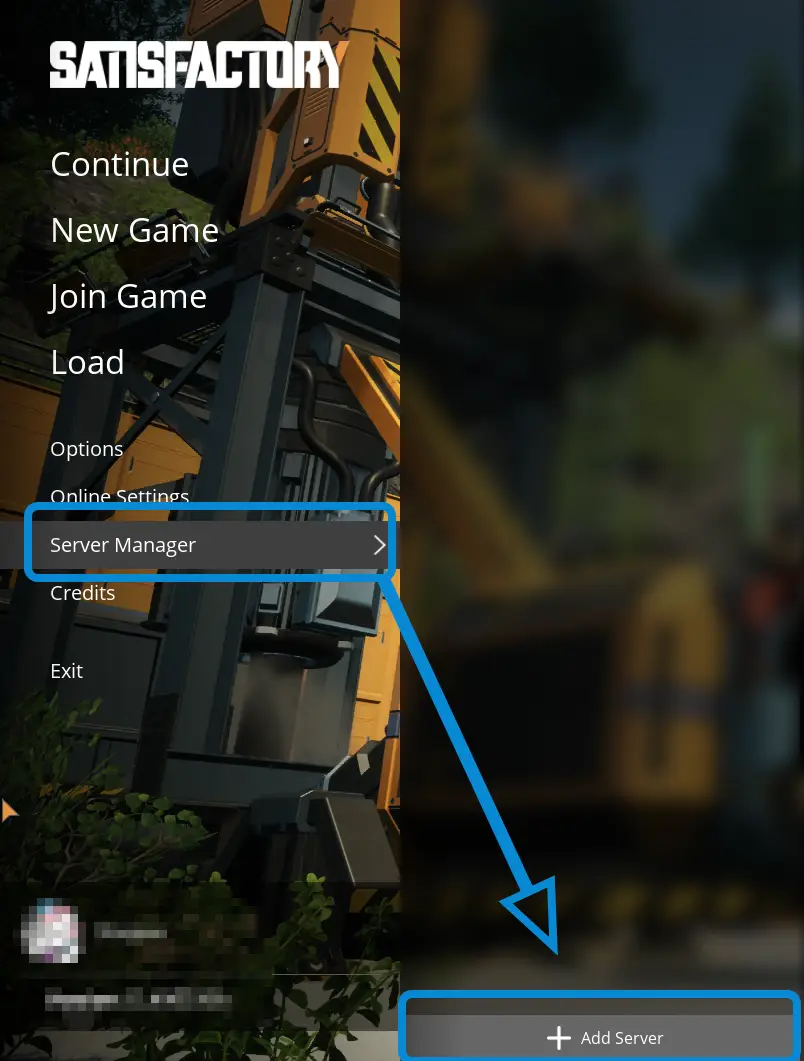
You'll need to start by selecting the "Server Manager" tab from the title screen then the "Add Server" button on the bottom of the pane that slides out.
After clicking "Add Server", you'll be presented with a modal similar to the one below, where you'll need to enter your server's IP and Port.
 Loading...
 Loading...
Fingerprint
 Loading...
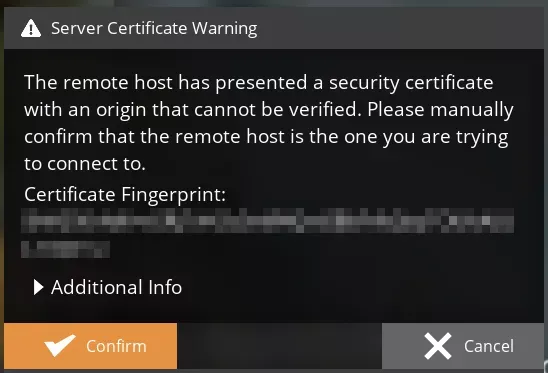
When the Server Manager connects to the server, you may be presented with a "Server Certificate Warning" which is shown when you use a Self-Signed Certificate. This is expected and you can select "Confirm". If you're worried about connecting to the incorrect server, use the dropdown below to see how to find your server's fingerprint.
Locating your server's Fingerprint
When you use a Self-Signed Certificate your server's Fingerprint is printed to the log on startup in the following format.
LogServer: Warning: ==============================================================
LogServer: Warning: Server API is running using a Self-Signed Certificate.
LogServer: Warning: To verify the certificate integrity on the Client, make sure the following Fingerprint matches with the Client one:
LogServer: Warning: SHA256:<Fingerprint>
LogServer: Warning: ==============================================================
The part you'll want to compare to the error shown in the game client comes after the SHA256: on the 4th line.
Claiming
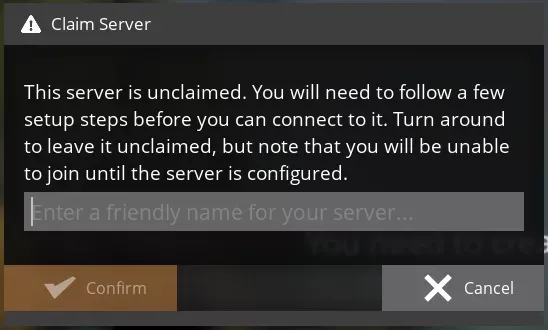
After you've confirmed the Server Certificate, you'll get a "Claim Server" modal telling you that the server is unclaimed and requesting a "friendly name" for your server. You can start the server claiming process by entering a name and clicking "Confirm".
 Loading...
 Loading...
With the server name confirmed, you'll be asked for an Admin Password with a "Set Admin Password" modal. You'll want to make sure that this password is secure as it'll be used for game clients to manage your server from the Server Manager.
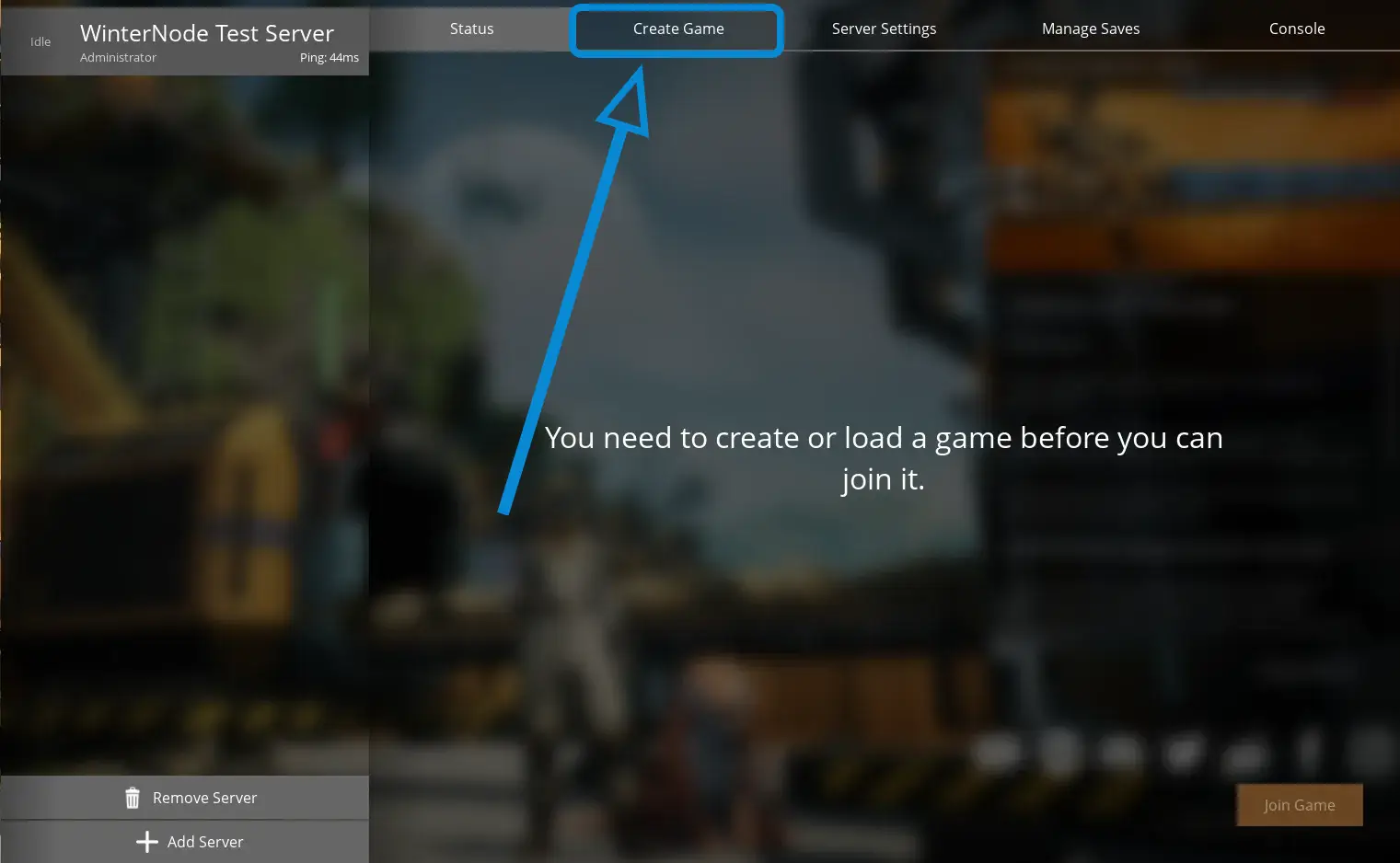
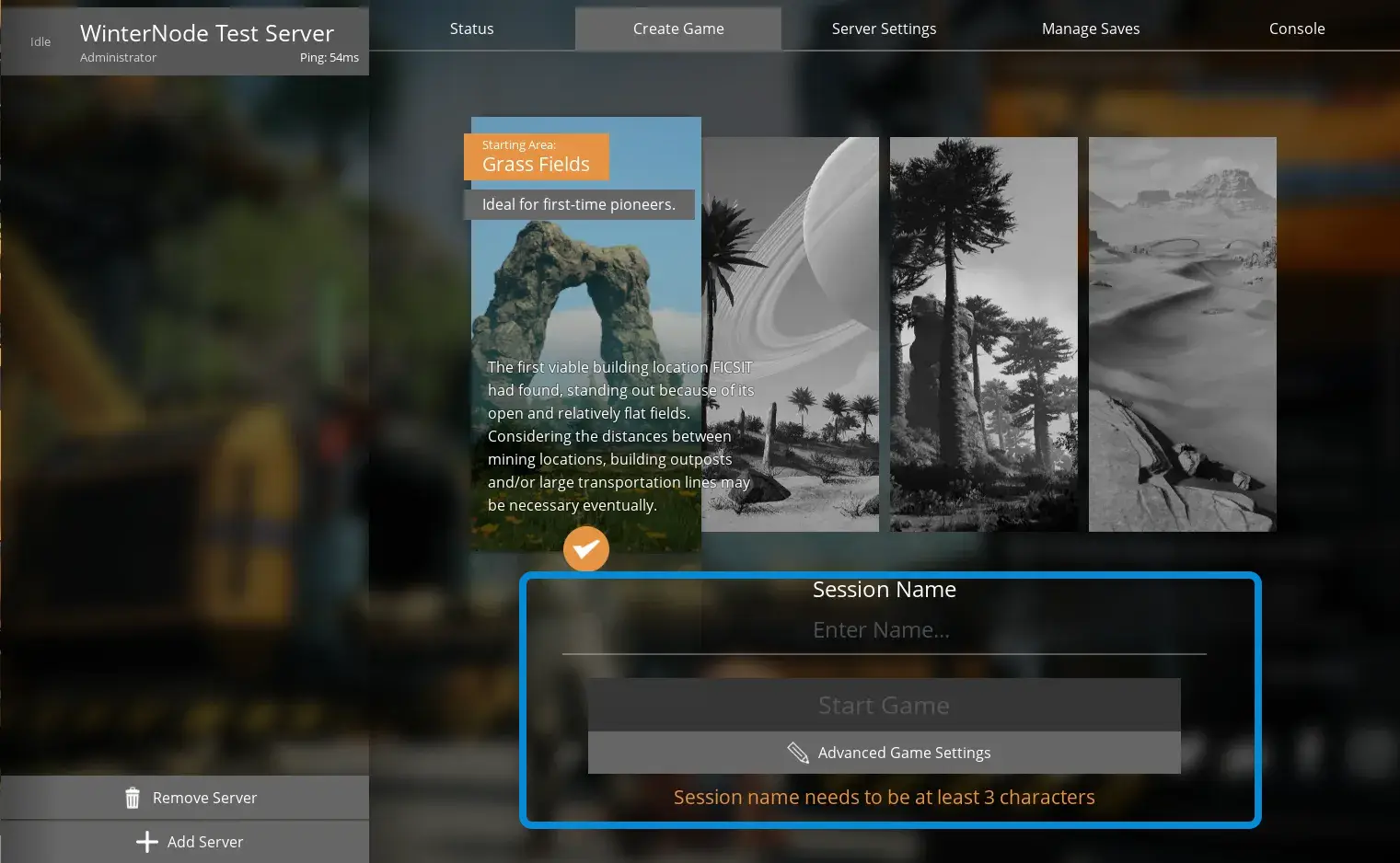
The final step that's required for the initial configuration is that you create a "Game". After you confirm the server name, you'll be presented with the screen shown below that says "You need to create or load a game before you can join it". You can Create a save using the "Create Game" tab as shown below, or you can upload a local save using the "Manage Saves" → "Upload Save" tab.
If your server is private, you may want to set a server password!
 Loading...
 Loading...