Upload your Satisfactory World
Upload
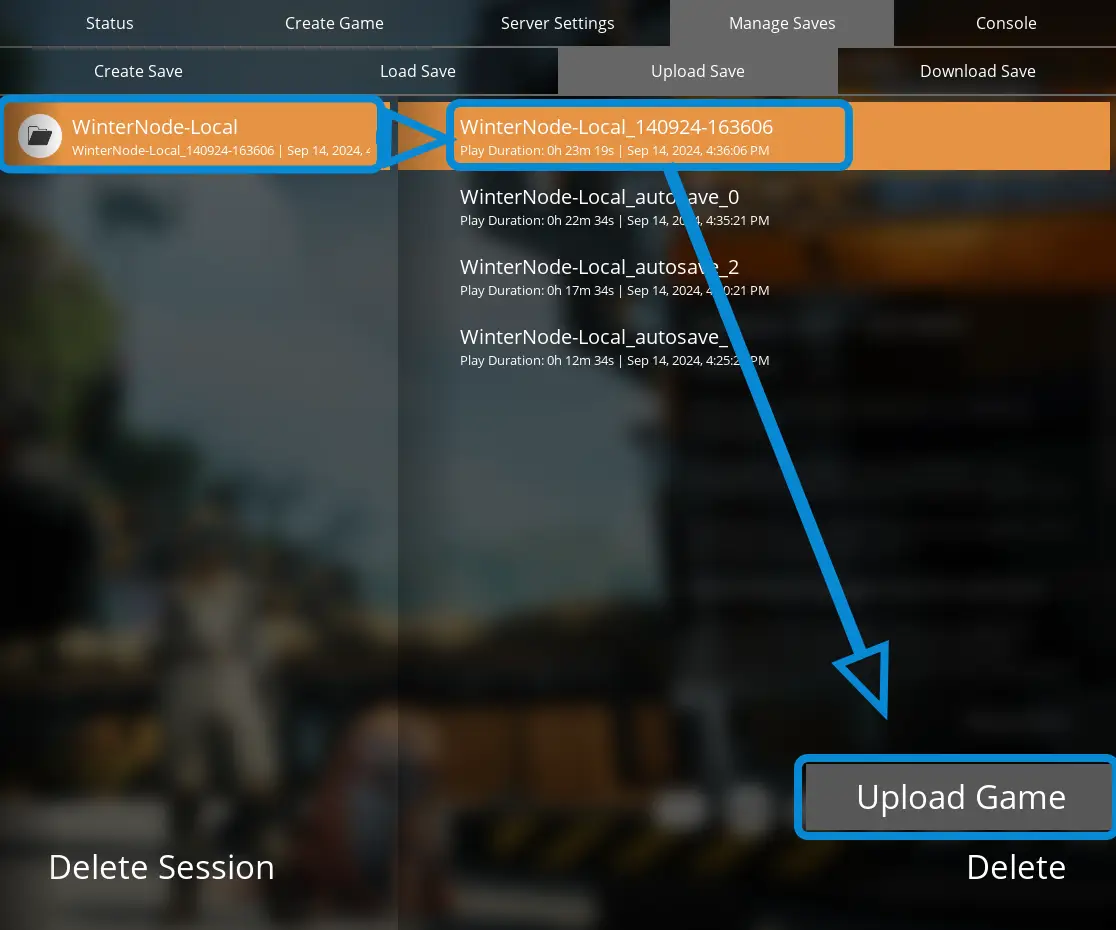
You can upload your local saves from your Satisfactory client to your server using the "Manage Saves" -> "Upload Save" tab in the Server Manager.
Just select the Game/Session you want to upload from the left, then pick one of the saves for that Game/Session on the right, and finally click "Upload" in the bottom right of the pane.
 Loading...
Load
You can use the "Manage Saves" -> "Load Save" tab in the Server Manager to switch between Sessions/Games and revert to autosaves or manual saves.
- Select the Game/Session you want from the right side of the "Load Save" tab.
- Pick the specific save state you want from the right side of the tab.
- Press the "Load Game" button in the bottom right hand corner.
- If your world has "Advanced Settings" press the "Load Game with Advanced Settings enabled?".
![The Satisfactory Server Manager on the "Manage Saves" -> "Load Save" tab, showing a list of Games/Sessions on the left, associated save states on the left, and a "Load Game"/"Load Game with [,,,]" button on the bottom right above a "Delete" button.](/assets/images/Satisfactory-Server-Manager-Manage-Saves-Load-Save-6b59f08043cc532969c2e66e378494e4.webp) Loading...
Loading...