DriveBackupV2
DriveBackupV2 provides an extra layer of security to your data by backing it up remotely. It can creates backups to Google Drive, OneDrive or a remote (S)FTP server.
Installation
First, you need to download the latest version of DriveBackupV2.
Import the downloaded DriveBackupV2.jar file in the plugins folder in the server and restart your server.
When the server restarts, it will load the plugin and generate files in the new folder called DriveBackupV2.
Using Google Drive
To connect your Google Drive account, run the command /drivebackup linkaccount googledrive in the server.
This will give you a link and a code to connect to your account.
 Loading...
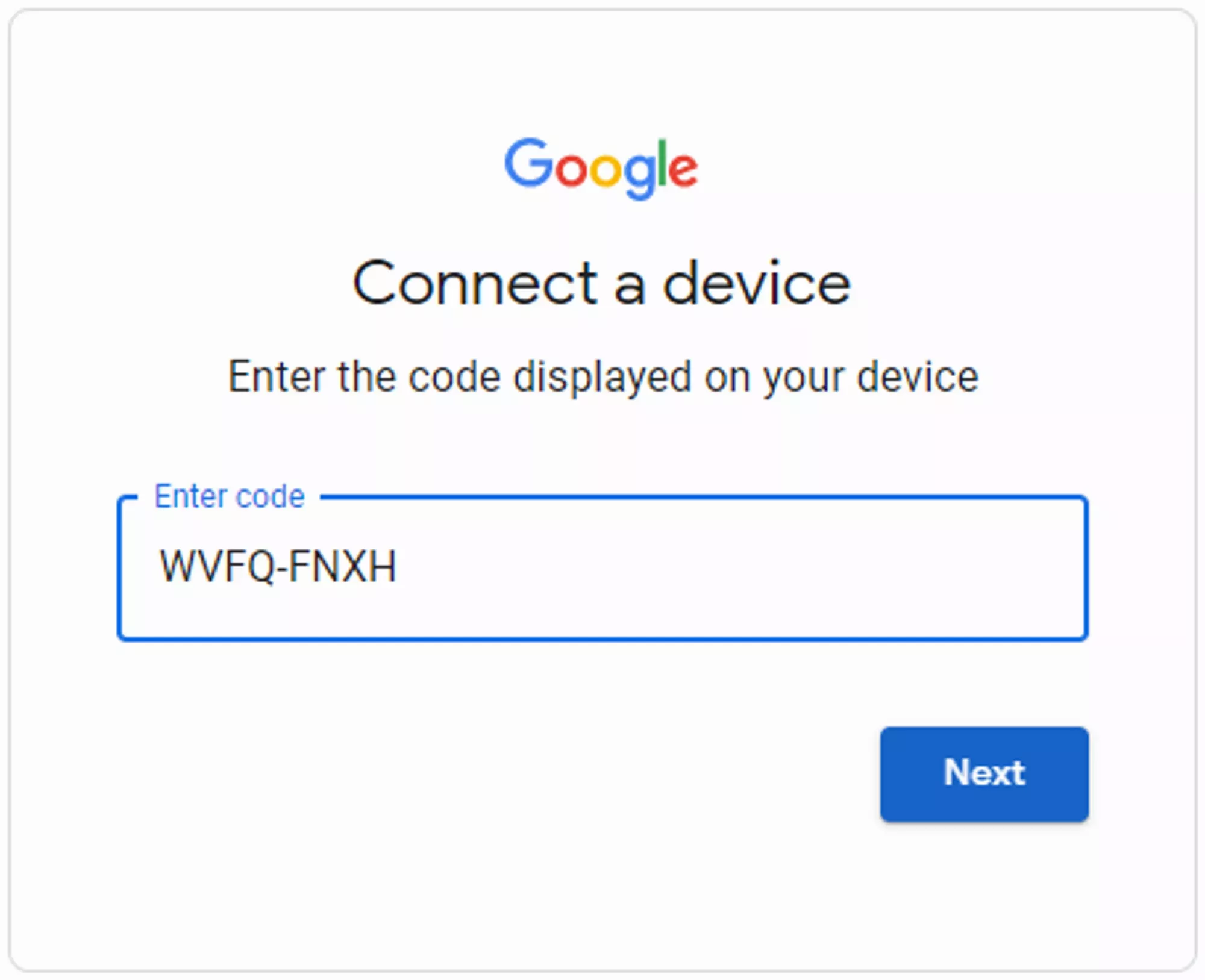
On the given link, it will ask you to enter the code seen in the message.
After the code, follow the next steps, allow it to access the folder to make backups and you successfully connected your account. A message letting you know it connected will display in server
Loading...
On the given link, it will ask you to enter the code seen in the message.
After the code, follow the next steps, allow it to access the folder to make backups and you successfully connected your account. A message letting you know it connected will display in server
 Loading...
 Loading...
Using OneDrive
To connect your OneDrive account, run the command /drivebackup linkaccount onedrive in the server.
This will give you a link and a code to connect to your account.
 Loading...
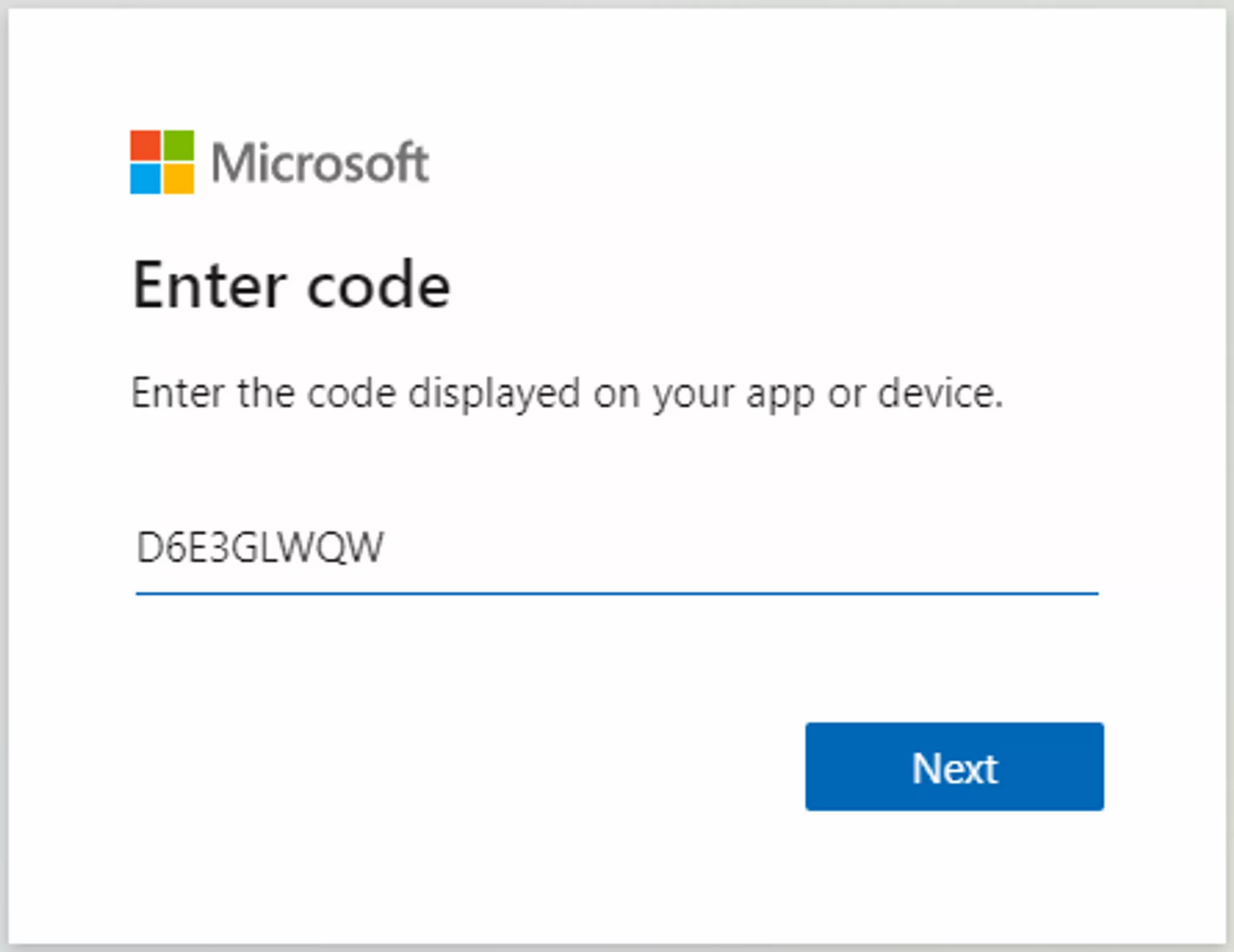
On the given link, it will ask you to enter the code seen in the message.
After the code, follow the next steps, allow it to access the folder to make backups and you successfully connected your account. A message letting you know it connected will display in server
Loading...
On the given link, it will ask you to enter the code seen in the message.
After the code, follow the next steps, allow it to access the folder to make backups and you successfully connected your account. A message letting you know it connected will display in server
 Loading...
 Loading...
Using a remote (S)FTP Server
(S)FTP backups is configurable in the config.yml file of the plugin, explained here.
Configuration
In the generated plugins folder DriveBackupV2 there is a file called config.yml which allows configuring the plugin. To apply any changes done here, you need to save the file and run the command /drivebackup reloadconfig in the server to reload the config.
delay How often to run a backup, in minutes. By default, this is set to 60 minutes.
If you want to make a backup every 2 hours, you will set this to 120 minutes.
backups-require-players Whether automatic backups should be disabled if there hasn't been any new player activity since the last backup. This is on by default.
zip-compression The compression level of the backup .zip files.
A higher compression level means a smaller file. You can set this between 0 and 9, with nine being the highest compression level. Set this to -1 to use the default.
Remote Backups
keep-count How many backups to keep remotely before deleting the oldest one.
By default it is set to 20. Setting it to -1 will disable the automatic delete.
destination The path to the folder to save backups in on the remote server. This should be relative to the remote root folder. This is set to backups by default.
Local Backups
local-keep-count How many backups to keep locally before deleting the oldest one.
By default, it is set to 0. Setting it to -1 will disable the automatic delete.
dir The path to the folder to save backups locally. This should be relative to the folder containing the Minecraft server jar. This is set to backups by default.
Example: If you want to save to folder /home/container/backups/data you should set it to backups/data.
Specifying what to backup
By default, it will backup world and plugins folders, you can specify any files and/or folders.
advanced → date-timezone The timezone for the backup zip files' naming format. The list of timezones can be found here.
Example Timezones
| Location | Timezone |
|---|---|
| Chicago, USA | -6:00 |
| Paris, France | +1:00 |
| New York, USA | -5:00 |
backup-list The list of files/folders to back up. The entries are divided to 4 things:
pathThe file/folder path should be the path to the file/folder you want to backup. It is relative to/home/container. Example:important/datawill select the folderdatainimportant. The full path would be/home/container/important/data.formatThe file name format is the naming scheme of the zip file that will be created, this should contain a timestamp, included using date and time pattern letters. You can learn more about them here.globBacks up all folders matching the file glob specified. When this setting is set, thepathsetting is ignored and doesn't apply. Each folder matching the specified file glob is still backed up in separate zip files. Example:world*will select all folders that start with name "world". In PaperMC, that'sworld,world_netherandworld_the_end.createWhether to not create a zip backup for the specified path.blacklistA list of file globs. Files/folders matching a glob will not be included in the backup. Example:**/*.jarwill blacklist all files with thejarextension. Example backup list:
backup-list:
- path: "world"
  format: "'Backup-world-'yyyy-M-d--HH-mm'.zip'"
  create: true
- path: "plugins"
  format: "'Backup-plugins-'yyyy-M-d--HH-mm'.zip'"
  create: true
backup-list:
- glob: "world*"
  format: "'Backup-world-'yyyy-M-d--HH-mm'.zip'"
  create: true
Scheduled Backups
scheduled-backups backups run at each specified day of the week/time combination.
schedule-timezone The timezone the times in the schedule are in. The list of timezones can be found here.
backup-schedule-list The list of the days/times to run a backup. The entries are divided to 2 things:
daysThe days to run the backup on should be a list of any of the following:- Days of the week:
sunday,monday,tuesday,wednesday,thursday,fridayorsaturday. - Groups of days:
weekdaysorweekends. - All days:
everyday.
- Days of the week:
timeThe time to run the backup should be in 24-hour format. If the time is before 10 o'clock, then there must be a zero in front of the hour. Example:05:00(5 AM),12:00(12 PM)
Example of a schedule list in config.yml:
backup-schedule-list:
- days:
  - "monday"
  - "friday"
  time: "06:00"
- days:
  - "weekends"
  time: "21:30"
(S)FTP Setup
You can configure to backup to FTP, FTPS or SFTP server. Currently, DriveBackupV2 can only back up to one such server at a time.
This configuration is under section ftp of the config.yml containing:
enabledWhether this backup method is enabled.hostnameThe hostname or IP address of the server to connect to.portThe port of the server. For FTP and FTPS, this is usually 21. For SFTP, this is usually 22.sftpWhether the server to is an SFTP server.ftpsWhether the server to is an FTPS server.usernameThe username to connect to the server under.passwordThe password to be used to authenticate with the server. Leave blank if no password required.working-dirThe directory to work in on the server. Leave blank to use the default. This is not to be confused with the backupdestinationsetting.
This settings only applies to STFP servers:
sftp-public-keyThe path to the key to be used to authenticate with the server. The path should be relative to theDriveBackupV2folder. Leave blank if you are not using public-key authentication. DriveBackupV2 can connect to SFTP servers that use both basic and public-key authentication.sftp-passphraseThe passphrase to be used in conjunction with the key to authenticate with the server. Leave blank if you are not using public-key authentication or no passphrase is required.