Satisfactory Save Management
Satisfactory has a few very powerful save management utilities through the Server Manager.
Create
Games and Saves can be created using the Server Manager in the Satisfactory client. This allows you to not only have multiple "Worlds" or "Sessions" on a server, but also manage manual saving of the active Game/Session.
When creating a Save/Game, there are notable differences between a "Save" and a "Game".
- A "Game" is the stating area, world, settings, and player data. It can be a group of "Saves".
- Some buttons refer to this as a "Session".
- A "Save" is a version of a "Game" and is a manual version of the "autosave" system.
Create Game
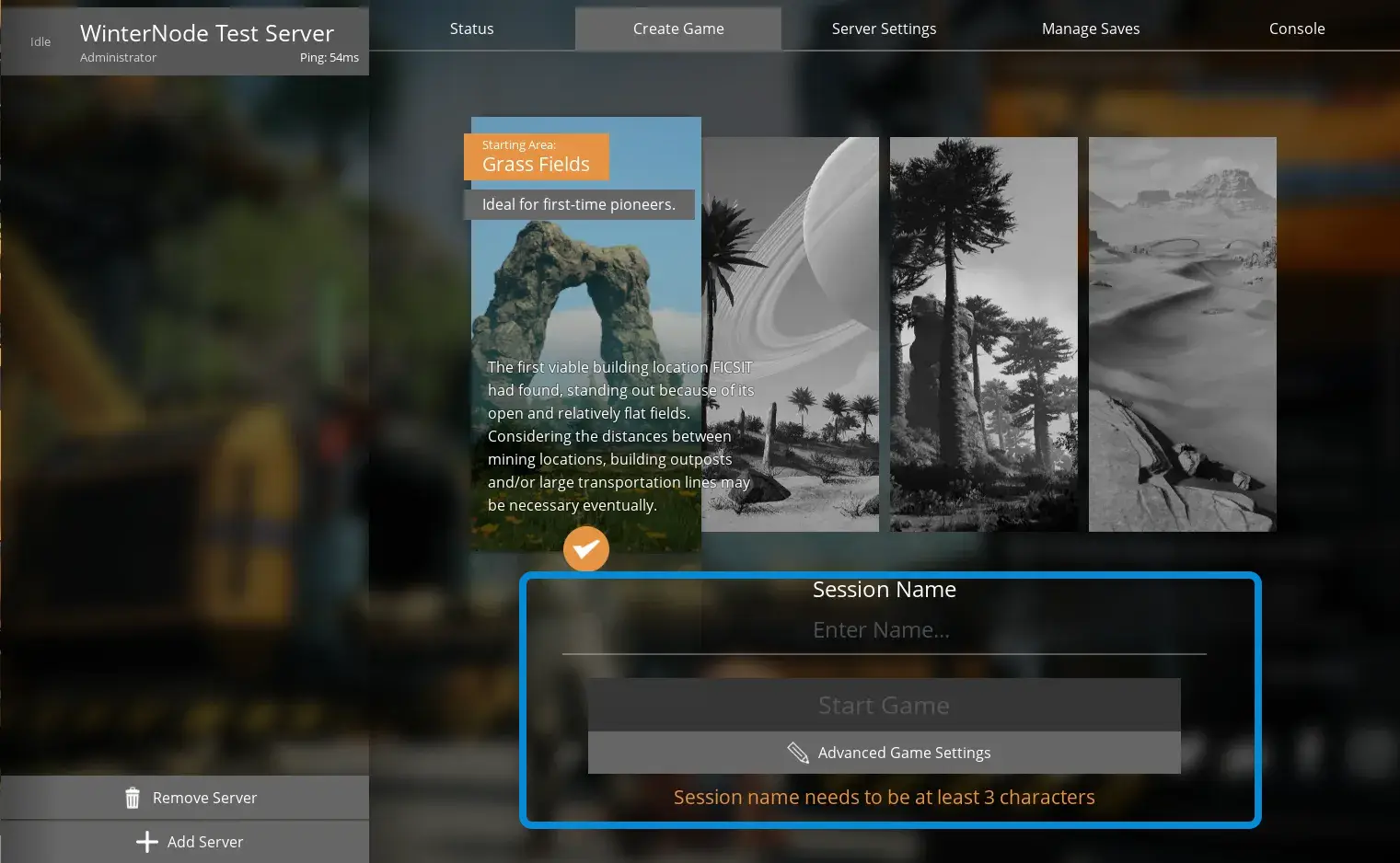
You can create a new Game with it's own Session Name, Starting Area, and Advanced Game Settings using the "Server Manager" → "Create Game". You'll need to do this with a new server before you can play.
If you have multiple Games you'll need to Load the Game you just created!
 Loading...
Create Save
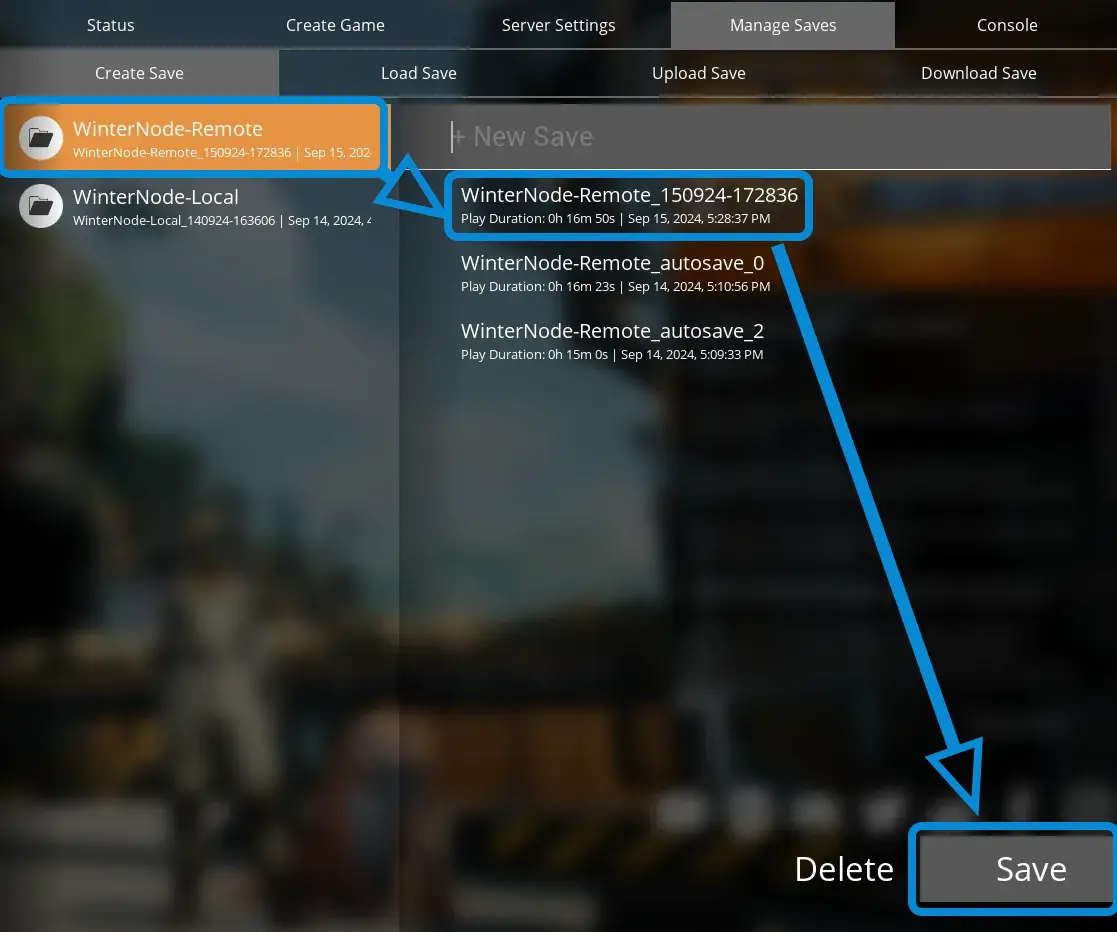
You can create new save states using the "Server Manager" → "Manage Saves" → "Create Save" tab.
- Select the Game you want to save from the list of "Sessions" on the left side.
- If you want to, you can fill out a name in the "New Save" field at the top of the existing saves on the right.
- Otherwise the save will take the name of the "Session" and date/time in the following format:
<day><month><year>_<hour><minute><second>
- Otherwise the save will take the name of the "Session" and date/time in the following format:
- Press the "Save" button in the bottom right.
Satisfactory will create a new save slot every time it autosaves and will delete the oldest one when there are more than 3 autosaves.
The autosave slots are shown in the same place as your manual saves and the Session will be loaded from the latest in the list.
 Loading...
Delete
You can delete Saves and Games using the Server Manager in the Satisfactory Client. While autosaves are deleted automatically, you can use this to manage the saves/games you want to keep.
When creating a Save/Game, there are notable differences between a "Save" and a "Game".
- A "Game" is the stating area, world, settings, and player data. It can be a group of "Saves".
- Some buttons refer to this as a "Session".
- A "Save" is a version of a "Game" and is a manual version of the "autosave" system.
Delete Game
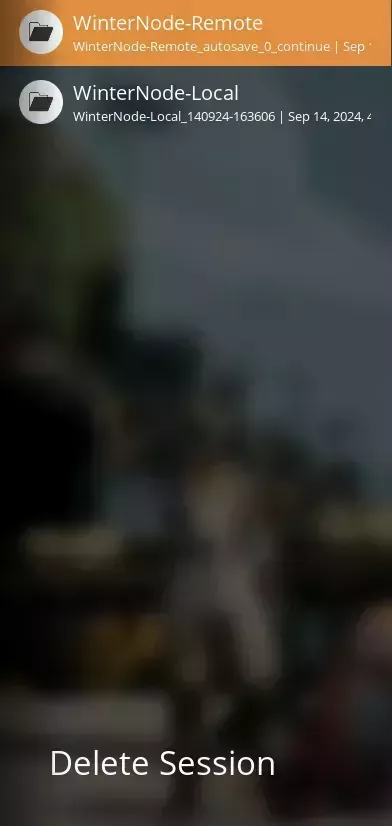
You can delete an existing Game/Session using the "Server Manager" → "Manage Saves" tab under the "Load Save", "Upload Save", or "Download Save" sub-tabs. The right side of the pane has a list of the existing Games/Sessions and a "Delete Session" button on the bottom.
Just select the Game/Session you want to delete and press "Delete Session" at the bottom of the list.
This will remove the entire world and all of it's saves!
This can not be undone
 Loading...
Delete Save
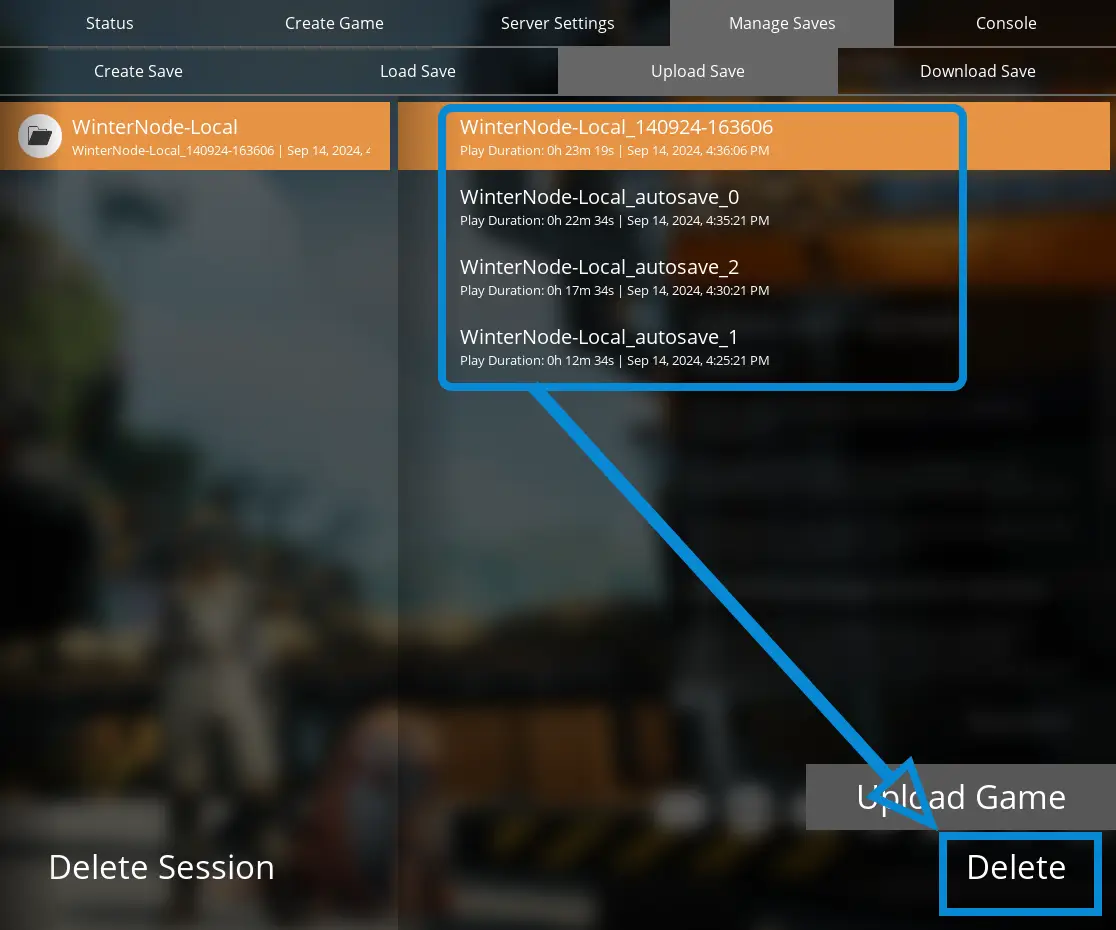
You can delete a save using any of the tabs under the "Manage Saves" tab in the Server Manager by selecting the Game/Session on the left then the save you want to delete from the list that appears on the right. Every tab will have a "Delete" button in the bottom right of the "Saves" list which will delete the selected save.
 Loading...
Satisfactory will create a new save slot every time it autosaves and will delete the oldest one when there are more than 3 autosaves.
The autosave slots are shown in the same place as your manual saves and the Session will be loaded from the latest in the list.
Upload
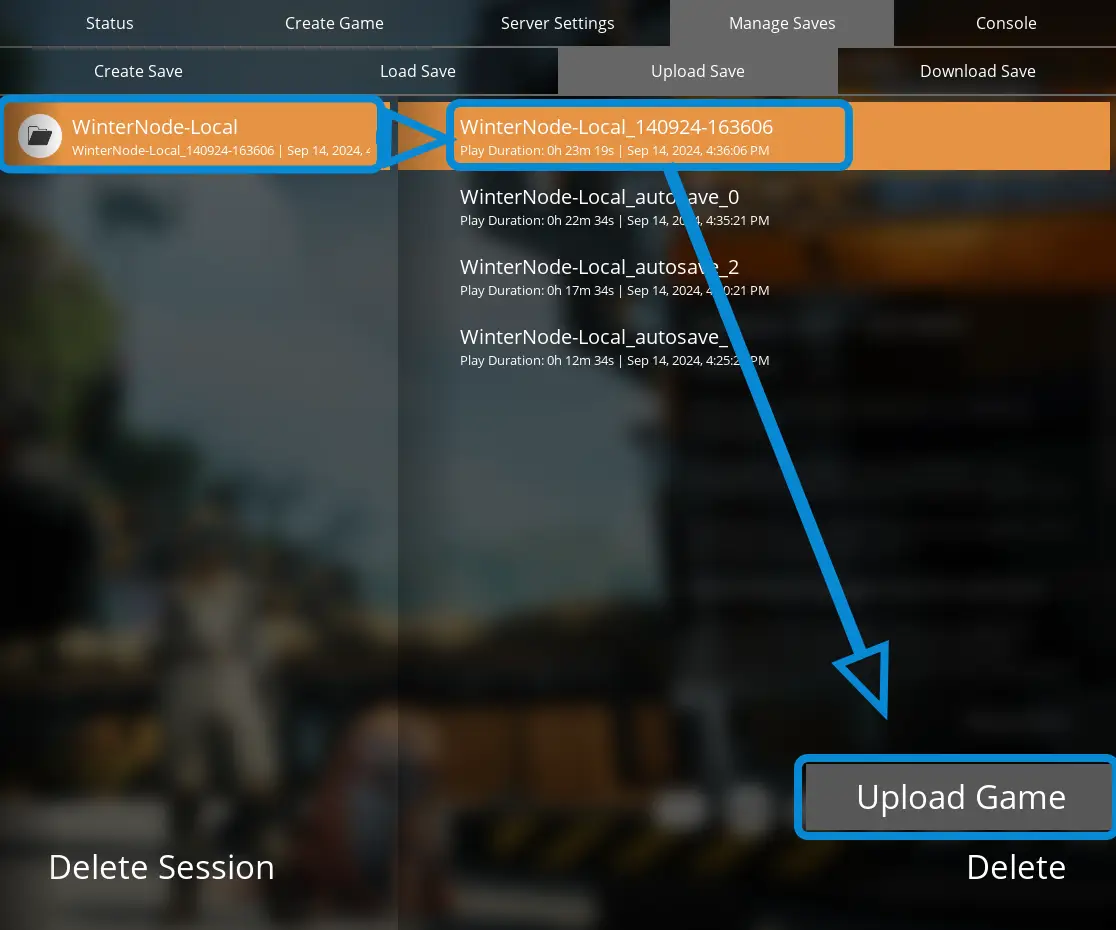
You can upload your local saves from your Satisfactory client to your server using the "Manage Saves" -> "Upload Save" tab in the Server Manager.
Just select the Game/Session you want to upload from the left, then pick one of the saves for that Game/Session on the right, and finally click "Upload" in the bottom right of the pane.
 Loading...
Load
You can use the "Manage Saves" -> "Load Save" tab in the Server Manager to switch between Sessions/Games and revert to autosaves or manual saves.
- Select the Game/Session you want from the right side of the "Load Save" tab.
- Pick the specific save state you want from the right side of the tab.
- Press the "Load Game" button in the bottom right hand corner.
- If your world has "Advanced Settings" press the "Load Game with Advanced Settings enabled?".
![The Satisfactory Server Manager on the "Manage Saves" -> "Load Save" tab, showing a list of Games/Sessions on the left, associated save states on the left, and a "Load Game"/"Load Game with [,,,]" button on the bottom right above a "Delete" button.](/assets/images/Satisfactory-Server-Manager-Manage-Saves-Load-Save-6b59f08043cc532969c2e66e378494e4.webp) Loading...
Loading...
Download
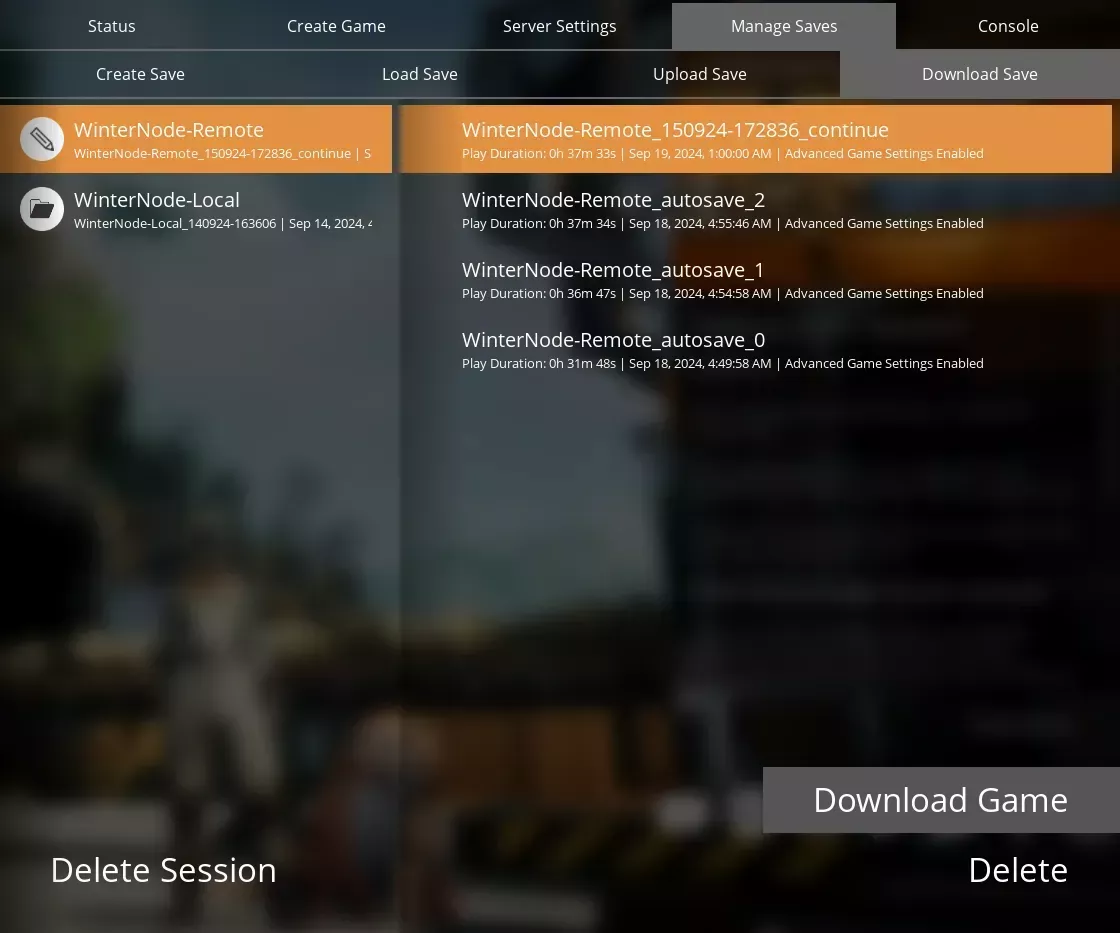
You can download Satisfactory saves from your server to your client using the Server Manager by navigating to the "Manage Saves" → "Download Save" tab. Then just select the Game/Session you want to download from the list on the left, then the specific save from the list on the right, and click the "Download Game" button.
 Loading...