Connecting to Minecraft Bedrock Servers
Finding the IP and port
Bedrock Edition servers running the Bedrock Edition software, IE not using the Geyser plugin/proxy, can be connected to using the Primary IP and port that you can find by Locating the IP address and port of your server.
Bedrock doesn't support SRV records, the type of DNS record that allows you to "hide" the non-default port at the end of a domain. So if you use a sub-domain from our Sub-domain Manager, or your own domain, you'll still need to use the port from your primary allocation.
Using a Dedicated IP allows you to use the default port of 19132 for Bedrock Edition servers, so you won't have to include the port when sharing the IP Address or Domain.
For players
As a server owner, you should share the IP address or domain and port (if applicable) with your players. As a player, you can follow the steps below.
The UI on different Bedrock Edition devices is very similar, but we're using Android as an example.
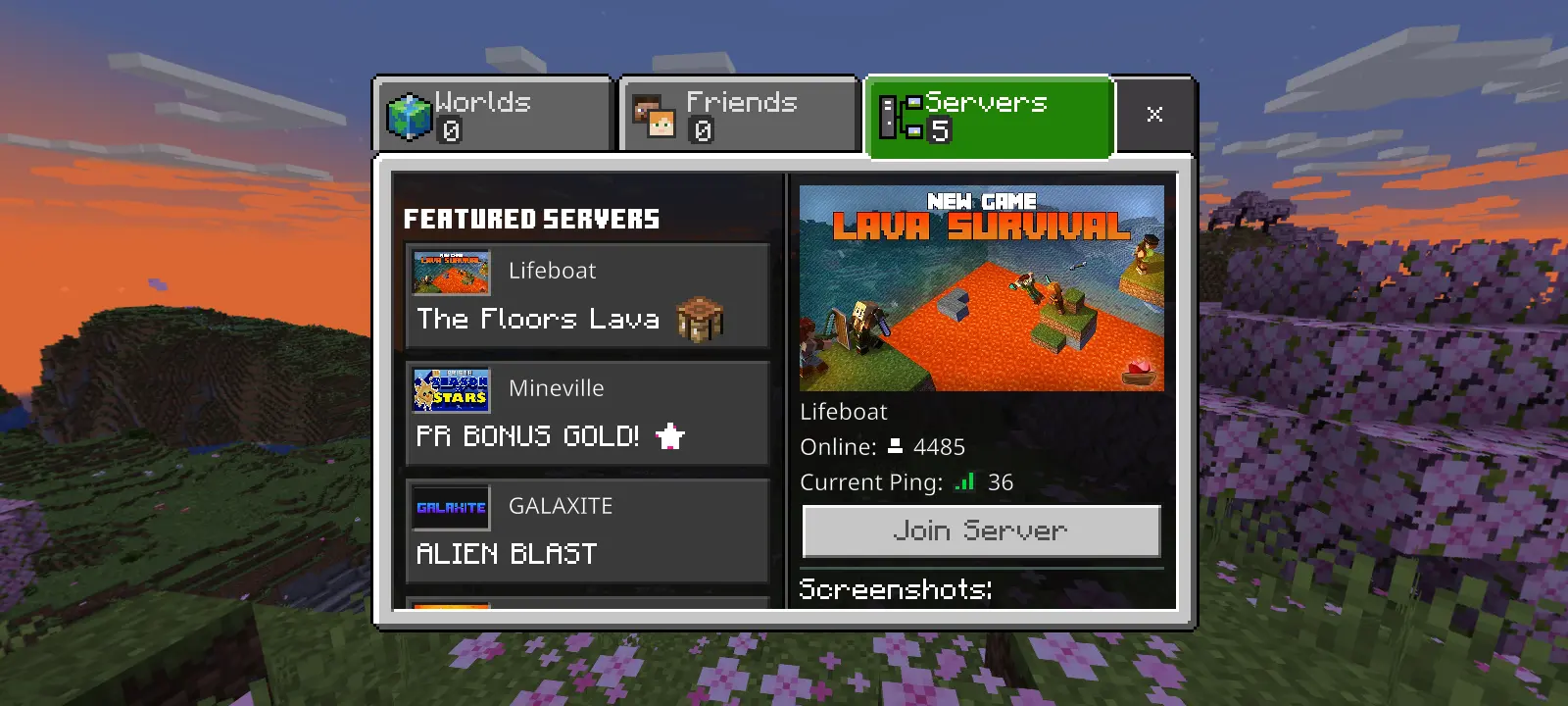
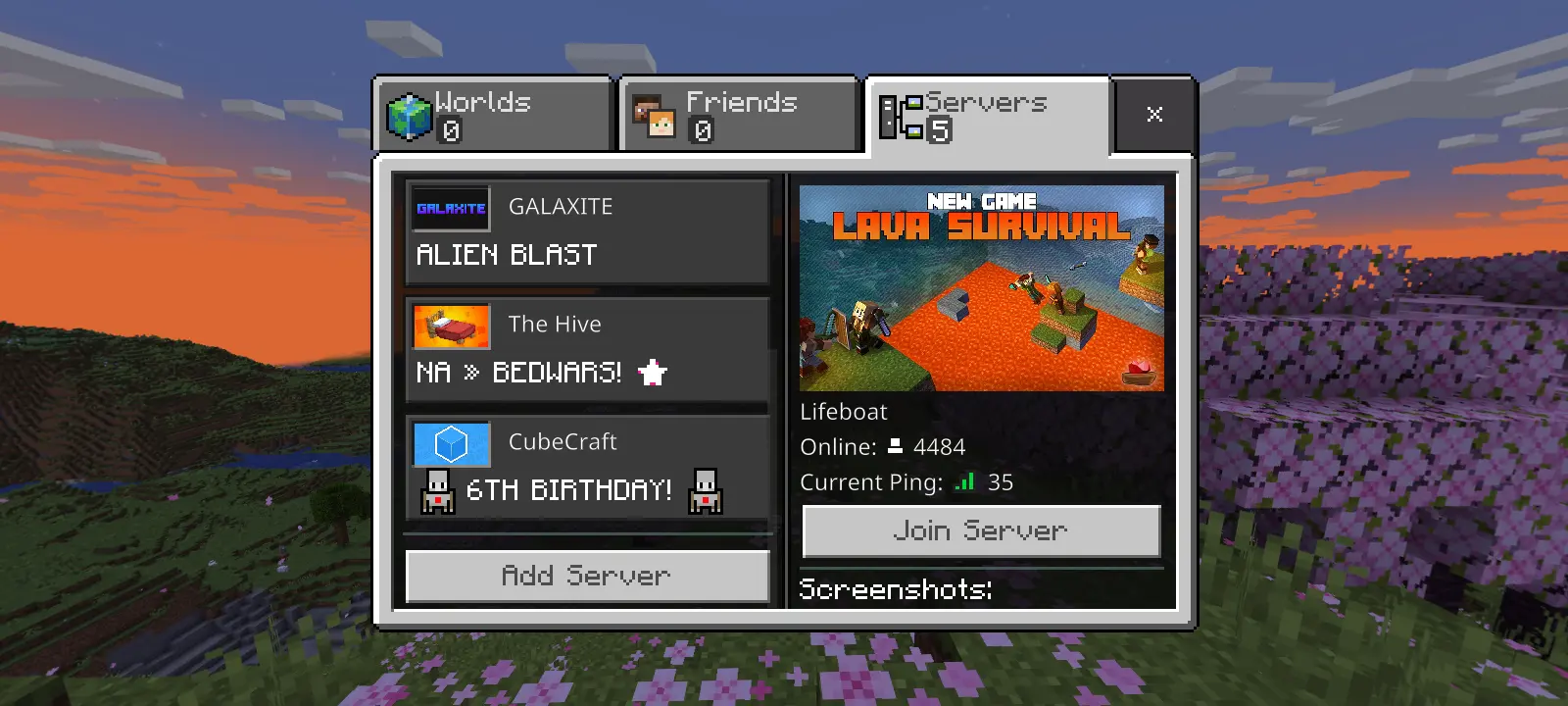
Once you have the address and port, you'll need to navigate to the "Servers" tab of the "Play" menu, then scroll down below the "Featured Servers" to find the "Add Server" button.
 Loading...
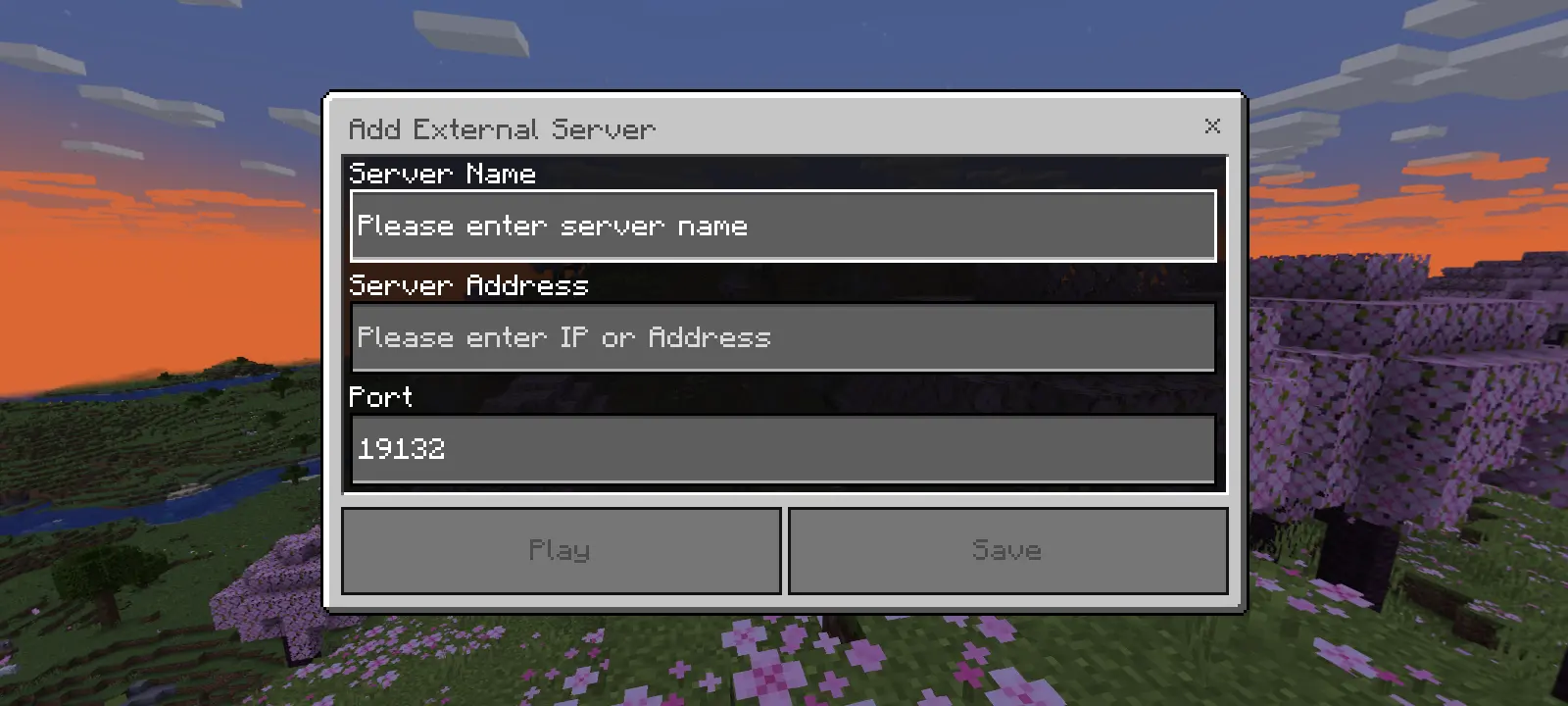
You should get a popup with the title "Add External Server", which has fields for the "Server Name", "Server Address", and "Port". The "Server Name" can be anything you like, but the "Server Address" should be the address and port you figured out previously.
 Loading...
 Loading...
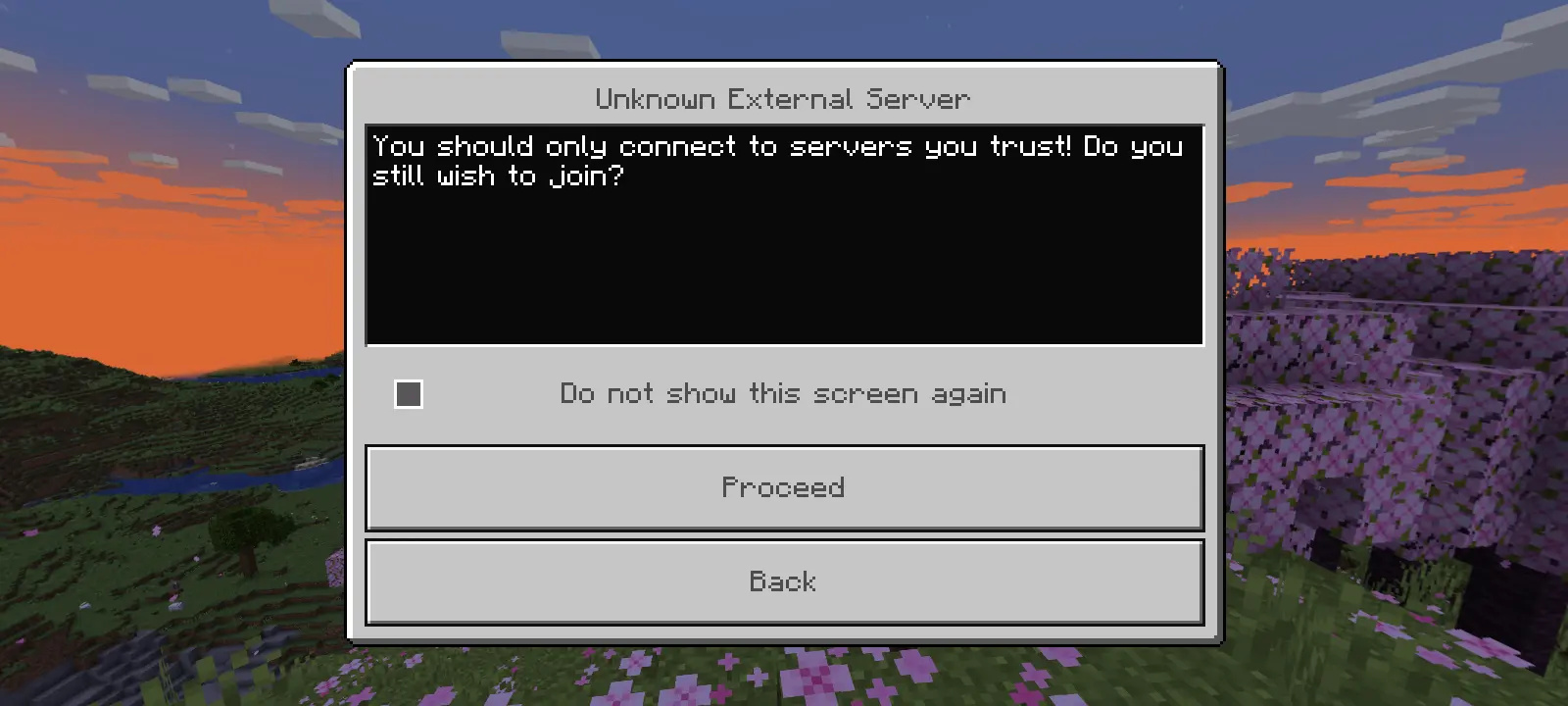
If this is the first server you've added, you may see this warning before you can add the server to your list. You can safely dismiss the warning, and hide it in the future using the "Do not show this screen again" check box.
 Loading...