Billing Account 2FA
We highly recommend using 2 factor authentication to secure your account.
- Log into the Client Area
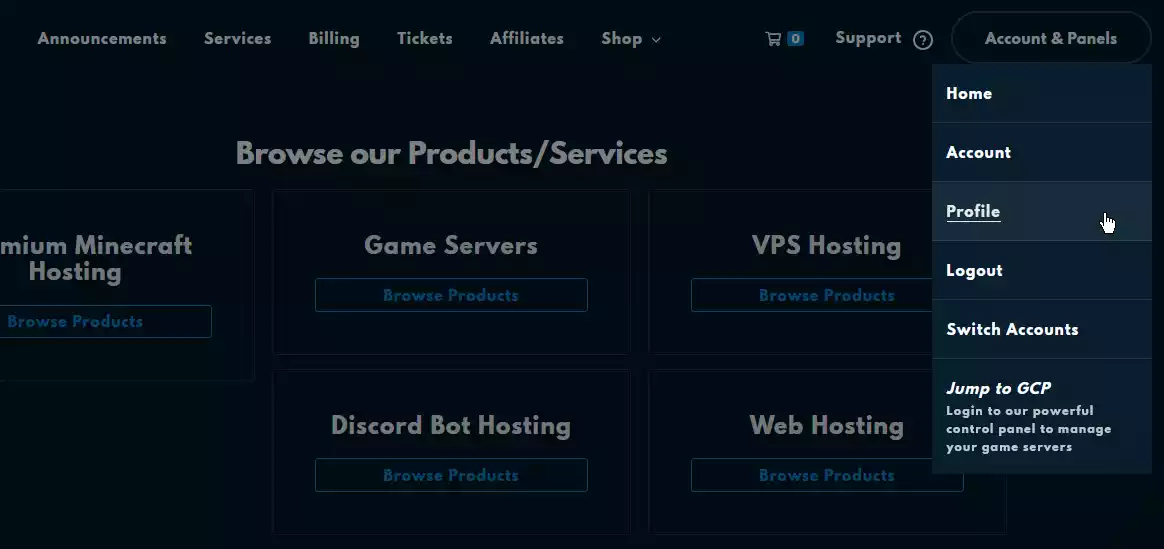
Select "Profile" from the "Account & Panels" dropdown
This is located on the upper right of the page next to the navbar, after logging into the Client Area.
 Loading...
Open the "Security Settings".
This is located on the left side of the "Your Profile" page.
- Click the green "Click here to Enable" button.
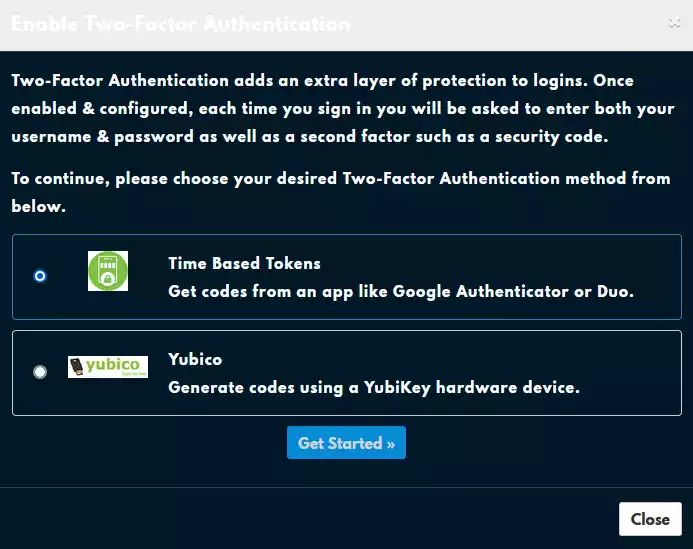
Select "Time Based Tokens" and click "Get Started".
You'll be presented with two options, "Time Based Tokens", which is what we've covered so far, and "Yubikey, which is an entirely different kind of 2FA that requires a specialized device.
 Loading...
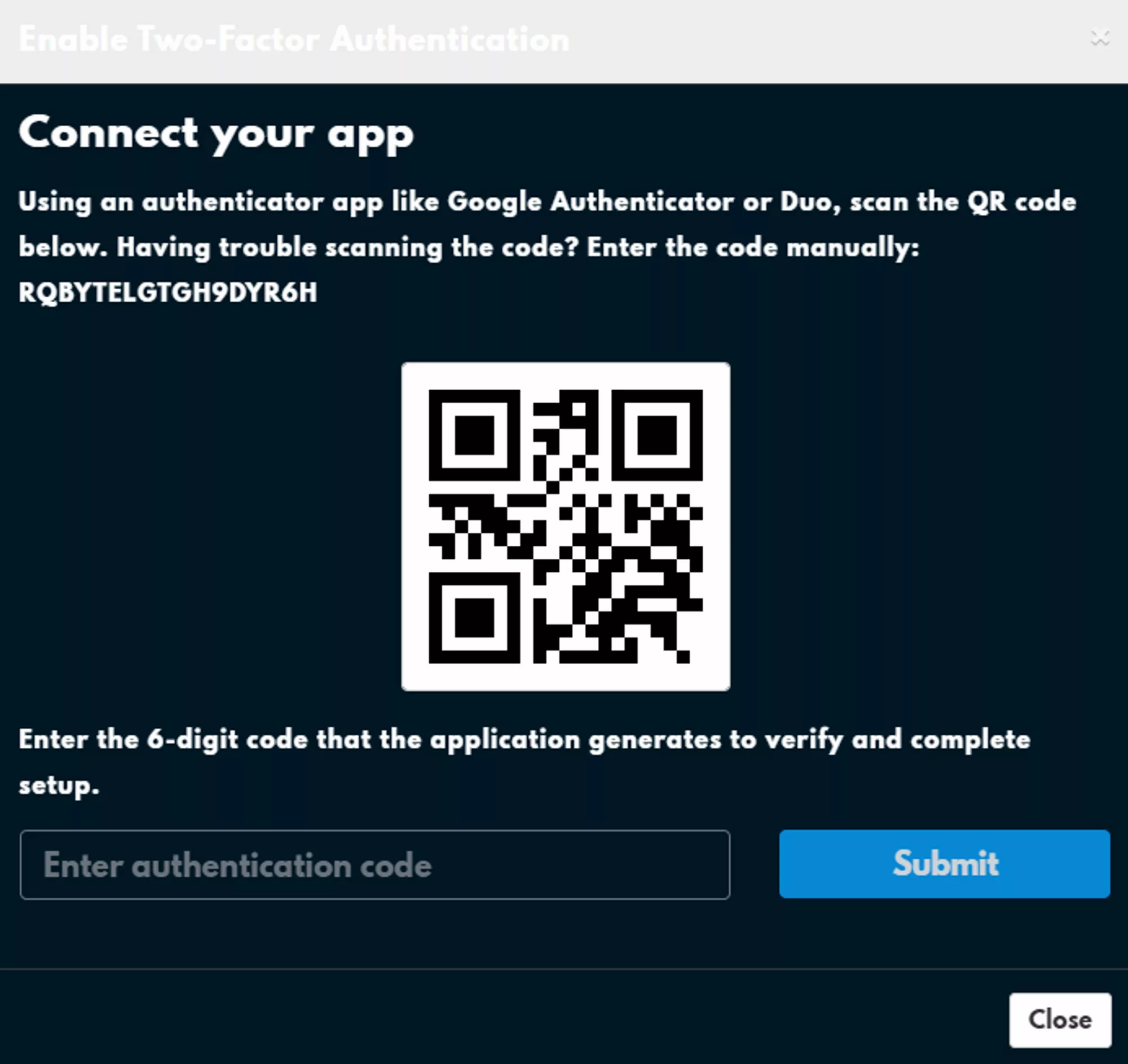
Scan the QR code with your authenticator app or enter the code directly.
You can scan the QR code using an app like Google Authenticator or Authy or you can enter the code manually into either of the two apps.
 Loading...
Make sure to save the alphanumeric code or QR code somewhere in a secure format. Good ways are in a private password manager or encrypted flash drive!
There are a lot of Authenticator apps with many different features, so you might want to try a few out or look at what’s provided by your phone already. If you save the code above then you’ll have no problem switching Authenticator apps!
What is 2FA?
2-Factor Authentication is an extra step added to logging into an account that helps prevent unauthorized access. If you've enabled 2-Factor Authentication, or 2FA, then you’ll be required to provide a token provided by an Authenticator application when you log into your account. The token is cryptographically generated from a private code only shared between WinterNode and the Authenticator application.
The goal of this is to provide a second authentication requirement for accessing your account, in particular one that is tied to a physical device like your cell phone. As long as you don’t share the 2FA tokens and a third party doesn’t have physical access to the authenticator device/app, this is a nearly foolproof method of authenticating.
For redundancies sake, you can even save the original code, often shown in-tandem with a 2D QR code, in a password manager or other safe location, in case you lose your device or have multiple devices set up with an Authenticator application ready to go.